
Google Sheets
Google LLCProductivity
4.725.02K Reviews
- Version
- Varies With Device
- Installs
- 1.00B
- Age Rating
- Everyone
Screenshots
Our Review of Google Sheets
 Analysis by Appyee
I like Google Sheets most when a spreadsheet needs to be useful beyond the desk. I can check a shared plan on my phone, make a small correction, and leave the same document ready for someone else to continue. It is a practical approach to everyday organization, though a phone screen is still a phone screen: I would not choose it for hours of intricate spreadsheet work.
Where it fits in a busy day
A realistic example is keeping a shared grocery or household budget. One person can add an expense while out shopping, another can check the running list at home, and both are working from the same sheet instead of comparing separate copies. For a small group, that removes a surprisingly common nuisance: figuring out which file is current. I find this kind of simple shared record more convincing than trying to use a spreadsheet for every task.
It also suits recurring lists that need a little structure, such as tracking volunteer shifts, comparing travel options, or recording project supplies. A useful habit is to keep the mobile sheet focused: put the fields people actually need near the beginning, use clear column names, and avoid making every entry depend on a complicated formula. That makes the document easier to scan and less awkward to edit on a touchscreen.
Small-screen trade-offs and practical habits
Mobile spreadsheet work has limits that are easy to underestimate. Selecting the right cell, editing a long formula, or navigating a wide sheet can take more patience than it would with a keyboard and mouse. When I need to restructure a large table, build several formulas, or compare many columns at once, I would rather switch to a computer. The phone app is strongest as a companion for checking, entering, and correcting information, not as a full replacement for every desktop session.
For a shared sheet, I would also agree on a few simple conventions before several people start editing. Consistent date formats, one row per item, and a clear place for notes help prevent messy data later. If a formula drives a total or summary, it is worth keeping that area visually distinct from cells people are expected to fill in. This is not a special feature; it is a practical way to make collaborative editing less error-prone.
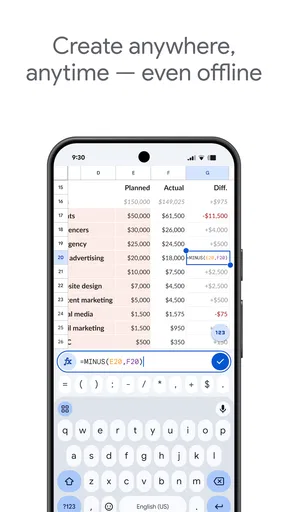
Offline access is useful when connectivity is unreliable, but I would treat it as a way to keep working on a needed file rather than as a substitute for planning. Before a trip or a long stretch without service, I would make sure the relevant sheet is available offline and avoid depending on changes from other people until the connection returns. That expectation matters whenever several people are working on the same information.
Who will get the most from it
I would recommend the app to students organizing research, households tracking shared plans, and small teams that need a living table rather than a static attachment. Its mix of familiar spreadsheet tools and shared editing makes it approachable even if you only use basic sums and sorting. Google LLC develops it as a free productivity app, and its Everyone content rating makes clear that it is not aimed at a narrow age group. Its 4.8 average from around 2.1 million ratings and over 1 billion installs also show how widely it has become part of people’s routines.
It is less compelling if your work depends on dense financial modeling, extensive keyboard shortcuts, or precise layout adjustments on a large display. In those situations, a desktop spreadsheet is usually more comfortable. If you only need to write notes or manage a short checklist, a notes or task app may be simpler; Sheets earns its place when rows, columns, calculations, or shared updates genuinely help.
How it compares, and what to expect
Compared with a traditional spreadsheet file passed around by email, the main advantage here is having a shared working copy that people can access across devices. Compared with a dedicated notes app, the advantage is structure: columns make it easier to sort, calculate, and compare entries. The trade-off is that a spreadsheet asks you to think in rows and columns, which can feel like unnecessary setup for a quick reminder or a free-form plan.
Templates can help when a blank grid feels daunting, but I would still edit one to match the job instead of treating its layout as a rule. For a budget, decide what counts as an expense before entering data; for a schedule, settle on a consistent way to record dates and availability. This small bit of setup often matters more than adding extra complexity later.
The app has been available since April 30, 2014, and its long life is part of why it feels familiar to many people. I would not take that history as a promise about any particular future change. What matters in daily use is whether the current version handles the work you need, and whether its shared, cloud-based approach fits the way your group prefers to coordinate.
Before choosing it, ask yourself whether you need calculations, sorting, or collaboration. If yes, it is a strong free place to start. If the file is business-critical, I would also keep a sensible backup and make sure collaborators know which sheet is authoritative. That is a good habit with any cloud document, not a reason to avoid this one.
Google Sheets is one of those apps that I initially underestimated. Like, how exciting can a spreadsheet app be, right? But after giving it a shot, I have to admit, it’s actually pretty impressive. So, let’s dive into what makes Google Sheets a must-have tool on your mobile device.
Getting Started with Google Sheets
First things first, getting started with Google Sheets is a breeze. You just need a Google account, which I’m guessing most of us have by now. Once you log in, you’re greeted with a clean and straightforward interface. It’s like a blank canvas ready for all your data-driven masterpieces.
One thing I love about this app is how it syncs seamlessly across all devices. Whether you’re on your phone, tablet, or computer, your spreadsheets are just a tap away. No more emailing files back and forth or worrying about version control. Everything is saved in the cloud, keeping your work safe and sound.
Features That Make Life Easier
Let’s talk about features. Google Sheets offers a plethora of tools that make managing data not only possible but downright enjoyable. From simple tasks like summing up columns to more complex functions like VLOOKUP and pivot tables, it’s got it all. And the best part? You don’t need to be a spreadsheet wizard to use them.
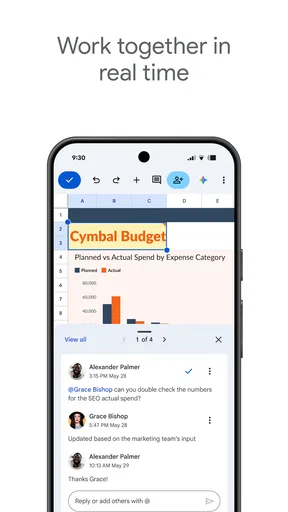
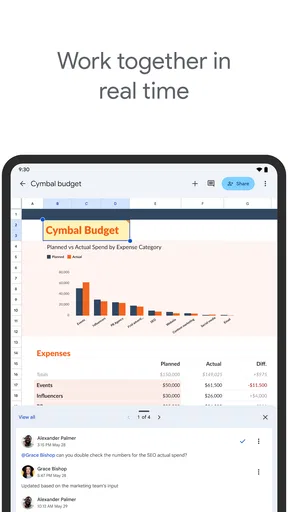
Another cool feature is the ability to collaborate in real-time. You can invite others to view or edit your spreadsheet, making teamwork a whole lot easier. Imagine working on a project with your team and seeing changes as they happen. It’s like magic, but better because it’s real!
Oh, and let’s not forget about the templates. Google Sheets offers a bunch of pre-made templates for things like budgets, schedules, and invoices. It’s perfect for folks like me who aren’t quite sure where to start or just need a little inspiration.
On-the-Go Productivity
One of my favorite things about Google Sheets is how it fits into my on-the-go lifestyle. I mean, who doesn’t like being productive while sipping coffee at their favorite café? The mobile app is smooth and intuitive, so you can whip up a spreadsheet or make quick edits without breaking a sweat.
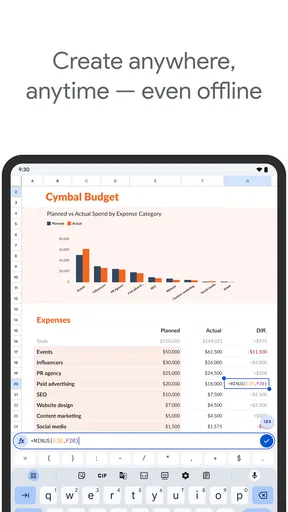
The offline mode is also a lifesaver. If you’re somewhere without Wi-Fi, you can still access and edit your files. Once you’re back online, everything syncs up automatically. It’s like having your cake and eating it too.
Customization and Add-Ons
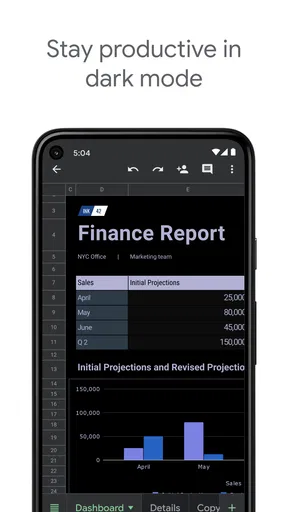
If you’re someone who loves customization, Google Sheets has got you covered. You can add charts, change colors, and even write scripts with Google Apps Script to automate tasks. It’s like turning your spreadsheets into super spreadsheets!
And with the Google Workspace Marketplace, you can find add-ons that enhance functionality. Whether it’s data analysis tools or project management features, there’s an add-on for almost everything. It’s like having a secret weapon in your productivity arsenal.
Wrapping It Up
In conclusion, Google Sheets is more than just a spreadsheet app; it’s a powerhouse of productivity. Whether you’re a student, a business professional, or just someone who loves organizing data, it’s a tool worth having. The blend of simplicity and advanced features makes it accessible for everyone.
So, if you haven’t tried Google Sheets yet, give it a whirl. You might just find yourself wondering how you ever managed without it. Happy spreadsheeting!
Privacy and Permissions
See what permissions an app requests and how it handles your data.
- Identity
- find accounts on the device, add or remove accounts
- Contacts
- find accounts on the device, read your contacts
- Photos/Media/Files
- read the contents of your USB storage, modify or delete the contents of your USB storage
- Storage
- read the contents of your USB storage, modify or delete the contents of your USB storage
- Microphone
- record audio
- Wi-Fi connection information
- view Wi-Fi connections
- Other
- view network connections, measure app storage space, full network access, read sync settings, run at startup, use accounts on the device, control vibration, prevent device from sleeping, toggle sync on and off, install shortcuts, read Google service configuration
How Google Sheets Compares
Full ComparisonChoose Google Sheets for straightforward shared spreadsheets, Excel for deeper analysis and offline work, or WPS Office for spreadsheets alongside PDF and document tools.
| App | Developer | Rating | Price |
|---|---|---|---|
 Google SheetsThis App | Google LLC | 4.7 | Free |
 Microsoft Excel: Spreadsheets | Microsoft Corporation | 4.8 | Free |
 WPS Office-PDF, Word, Sheet | WPS SOFTWARE PTE. LTD. | 4.4 | Free |
Verdict
Strengths of Google Sheets
- Cross-platform accessibility.
- Real-time collaboration features.
- Wide range of templates available.
- Automatic cloud saving.
- Easy data visualization tools.
Limitations of Google Sheets
- Limited offline functionality.
- Complex formulas can be slow.
- Mobile app less intuitive.
- Requires Google account.
- Some features need internet.
Other Releases by Google LLC
View All
Google Calendar
Productivity4.6

Google Messages
Communication4.6

Tools4.0

Google TV
Video Players & Editors3.9
Similar Picks in This Category
View AllGoogle Calendar
Google LLC4.6

Google Drive
Google LLC4.3

Google Assistant
Google LLC3.9

Microsoft OneDrive
Microsoft Corporation4.6

Samsung Calendar
Samsung Electronics Co., Ltd.4.1

Microsoft OneNote: Save Notes
Microsoft Corporation4.6
Frequently Asked Questions
What is Google Sheets and how does it work?
Google Sheets is a cloud-based spreadsheet application that allows users to create, edit, and collaborate on spreadsheets in real-time. It's part of the Google Workspace suite and works directly in your web browser, eliminating the need for downloads or installations. With integrated features like formulas, charts, and pivot tables, it’s a versatile tool for both personal and professional use.
Is Google Sheets free to use?
Yes, Google Sheets is free for anyone with a Google account. While the basic version offers a wide range of features, Google Workspace subscriptions provide additional benefits for businesses, such as increased storage and advanced collaboration tools. Users can easily access and share spreadsheets online, ensuring seamless collaboration.
How secure is my data in Google Sheets?
Google Sheets uses robust security measures to protect your data, including encryption in transit and at rest. You can manage sharing permissions to control who can view or edit documents. Google also offers two-step verification for added security. However, it’s important to regularly review sharing settings to ensure your data remains private.
Can I use Google Sheets offline?
Yes, Google Sheets can be used offline once you enable offline access. This feature allows you to work on your spreadsheets without an internet connection. Changes made offline will automatically sync to your Google account once you reconnect to the internet, ensuring your data is always up-to-date.
What file formats does Google Sheets support for import and export?
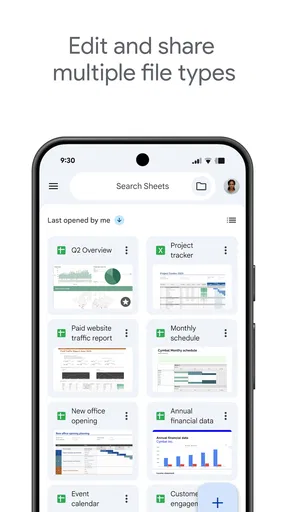
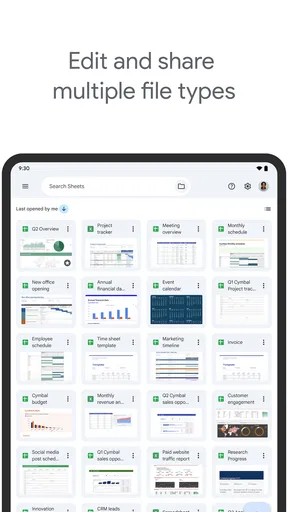
Google Sheets supports a variety of file formats for both importing and exporting. You can import Excel (.xls, .xlsx), CSV, and OpenDocument files, among others. For exporting, formats include PDF, Excel, and CSV. This versatility makes it easy to integrate Google Sheets with other applications and workflows.
